
Payments
From the Payments section, you can display all transactions in real time and check detailed information for each transaction. You can use the action buttons to Capture or reverse a preauthorisation or to Refund a transaction. And you can Download transactions in a CSV file.
By default, the Transactions list displays all transactions for all MIDs, currencies, transaction types, and transaction results for the current day.
Display transactions
To display Transactions, do these steps:
-
In the navigation menu, go to Payments.
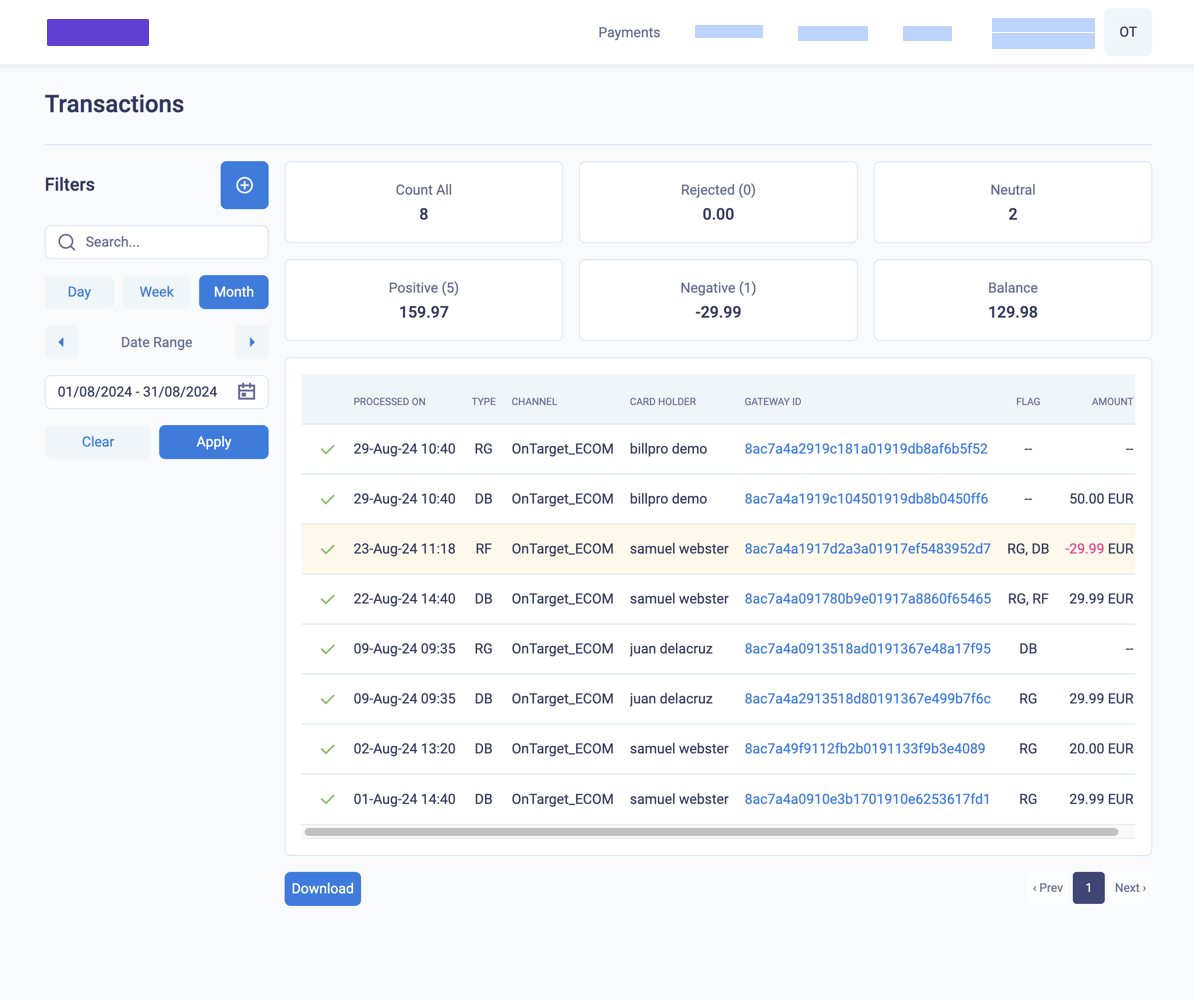
The transactions list
-
To set the dates to display.
- To quickly select periods of Day, Week, or Month, click these buttons.
- To move to the previous and next date ranges, use the forward and back arrows.
- Or you can select a custom date range with the calendar selector.
The Transactions list displays for the selected dates. At the top of the page, the transaction totals section displays the following data.
Transaction totals
The transaction totals include different types of transactions. For a description of each transaction type, see Transaction types.
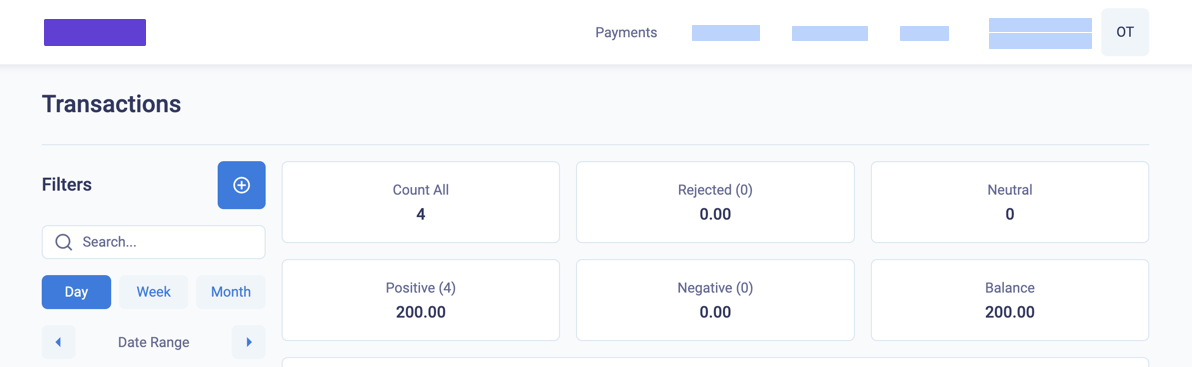
The transaction totals section
The following table describes the transaction totals section.
| Total | Description | Transaction types included | Result |
|---|---|---|---|
| Count All | Count of all transactions in all currencies | PA, CP, DB, RF, RV, CD, RG, SD, CBR, R1R, RDR, CB, CB2 | Approved and declined |
| Rejected (X) | Count of rejected transactions in all currencies | PA, CP, DB, RF, RV, CD, RG, SD | Declined |
| Rejected | Total amount of rejected transactions in all currencies with no financial impact on the merchant | PA, CP, DB, RF, RV, CD | Declined |
| Neutral (X) | Count of transactions with no amount collected directly and no financial impact on the merchant | PA, RV, RG, SD | Approved |
| Neutral | Total amount of transactions with no amount collected directly and no financial impact on the merchant. PA is neutral +, and RV is neutral - | PA, RV | Approved |
| Positive (X) | Count of positive transactions that are credited to the merchant | DB, CP, CBR, R1R (Not DB and CP flagged as fraud) | Approved |
| Positive | Total amount of positive transactions that are credited to the merchant | DB, CP, CBR, R1R (Not DB and CP flagged as fraud) | Approved |
| Negative (X) | Count of negative transactions that are debited to the merchant | RF, RDR, CB, CB2, CD | Approved |
| Negative | Amount of negative transactions that are debited to the merchant | RF, RDR, CB, CB2, CD | Approved |
| Balance |
| Approved and declined |
Transactions list
The main section of the Transactions list includes every transaction that you send to the payment gateway. For a description of each transaction type, see Transaction types.
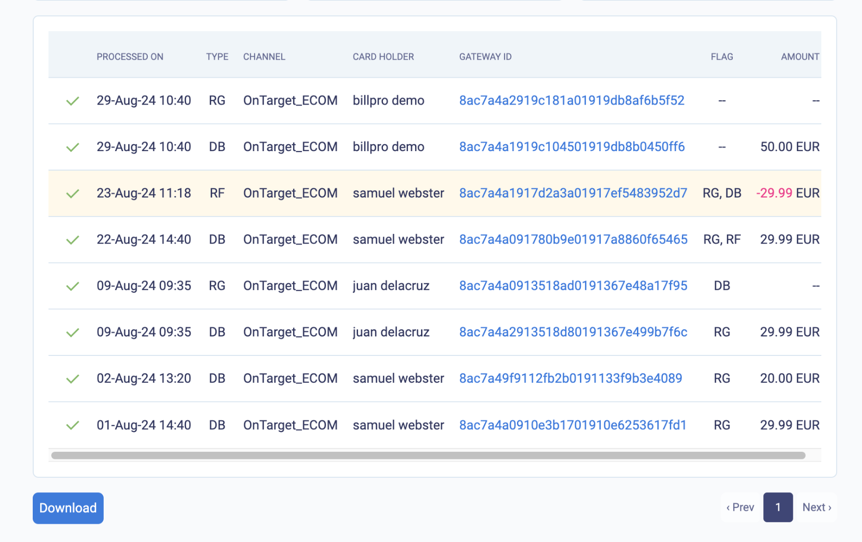
Detail of columns in the transactions list
To display the full transaction details and the buttons for capture, reverse or refund actions, click on the GATEWAY ID. See Display transaction details.
To download the Transactions list as a CSV and for a description of the downloaded file, see Download transactions.
The columns of the main section of the Transactions list contain the following data.
| Column | Description |
|---|---|
| Settled/Approved/Declined. Settled means that the transaction has been cleared. If your acquirer is not integrated with CardCorp Hub, then the settled flag will not display. |
| Processed on | Processing date and time |
| Type | Transaction type. See Transaction types |
| Channel | An entity in the gateway that identifies where the transaction was processed and the payment flow. It can include risk management configuration such as blacklisting accounts or 3D Secure or validation checks. |
| Card holder | First name and family name of the cardholder |
| Gateway ID | Unique identifier of the transaction in the gateway |
| Flag | Types of transactions related to this transaction. See Transaction types |
| Amount | A positive + amount is to be debited to the merchant. A negative - amount is to be credited to the merchant. An amount in parenthesis () has no financial impact on the merchant. |


Filter transactions
You can filter transactions with a quick filter and a detailed filter.
-
To use the quick filter on the list, you can search for GATEWAY ID, the gateway's transaction identifier.
-
To apply a detailed filter to the list, click (+) and enter or select details to filter. For more details, see Transaction filters below.
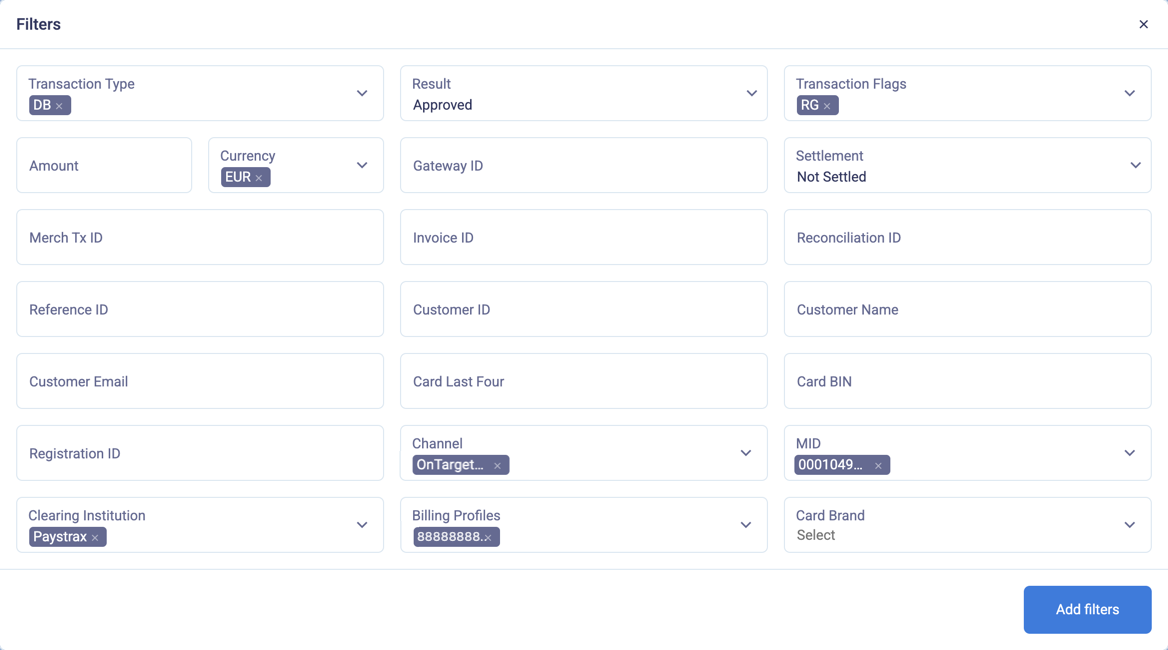
Select and enter filters to filter the transactions list
-
Click Add Filters. The filtered Transactions list displays.
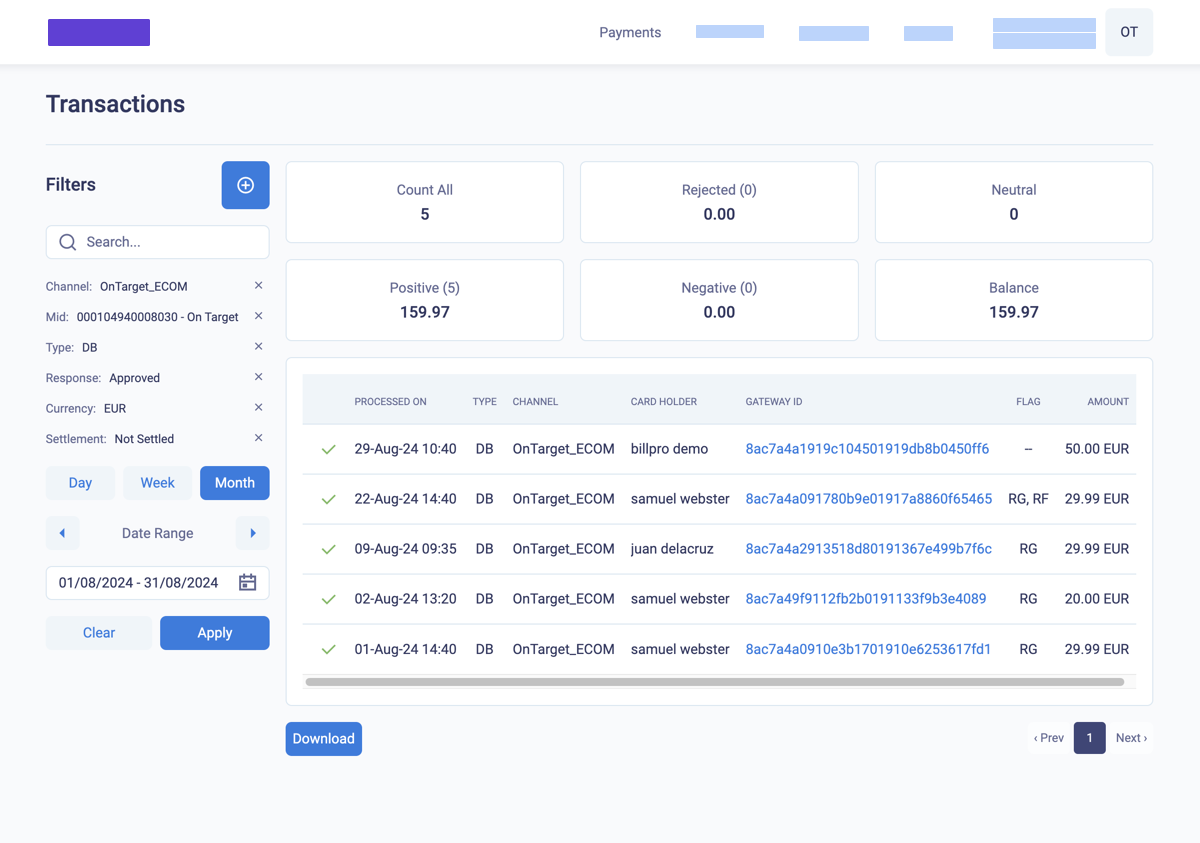
The filtered transactions list
To remove the filters, click Clear.
Download and filterFor custom filtering, Download transactions as a CSV file and filter them in the your preferred spreadsheet program.
Transaction filters
You can filter the Transactions list with the fields in the following table.
| Field | Description |
|---|---|
| Transaction type | The gateway transaction type, such as DB, PA or AUTH |
| Result | Select Approved or Rejected |
| Transaction Flags | The type of transaction associated with the original transaction, e.g. for a capture CP, there should be a pre-authorisation PA |
| Amount | Amount of the transaction |
| Currency | Currency of the transaction |
| Gateway ID | The gateway's identifier for the transaction |
| Settlement | Select Settled or Not Settled |
| Merch Tx ID | Merchant's identifier for the transaction |
| Gate ARN ID | Acquiring bank's identifier for the transaction - Acquirer Reference Number |
| Reconciliation ID | This identifier connects the transaction in the gateway with the settlement. It varies depending on the processor. For ACI with OmniPay, it is the short ID of the transaction in the gateway |
| Reference ID | The identifier of the previous transaction in the transaction flow |
| Customer ID | Merchant customer identifier |
| Customer Name | Enter the customer's full name |
| Customer Email | Enter the customer's full email address |
| Card Last Four | The last four digits of the customer's card |
| Card BIN | The first six digits of the customer's card |
| Registration ID | The identifier of a card registration, when a card is stored on file |
| Channel | Select a channel, an entity in the gateway that identifies where the transaction was processed and the payment flow. It can include risk management configuration such as blacklisting accounts or 3D Secure or validation checks |
| MID | Select the merchant account identifier |
| Clearing institution | Select an acquirer name |
| Billing Profiles | Select an identifier representing a group of merchant account IDs with the same currency. Not available for all acquirers |
| Card brand | Select brands of cards, such as VISA, MASTER, MASTERDEBIT |
Updated 10 months ago