
Manage users
Users with the Admin User role can manage users.
To manage users, go to the user icon and from the menu, select User Administration.
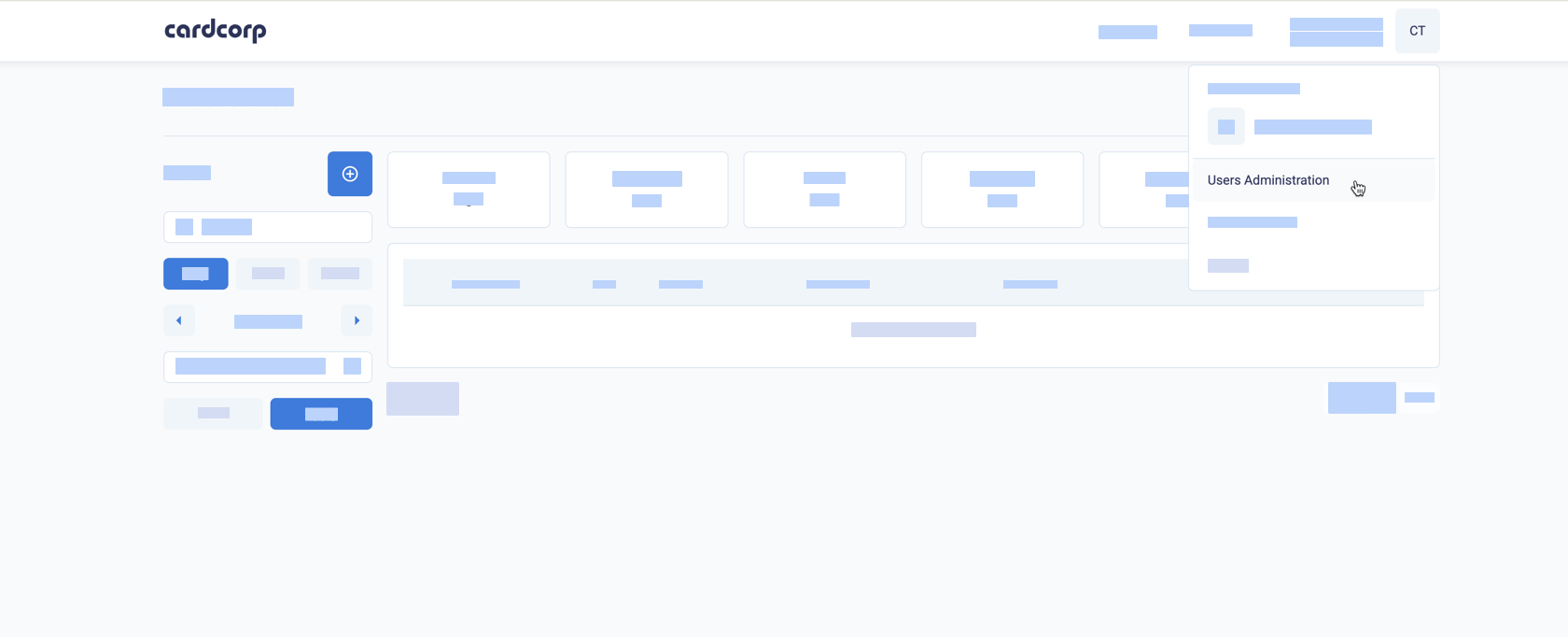
Select User Administration
To create a user:
- Click (+)
- Enter the user Email, First name and Last name
- Select a User Role:
- Normal User: with access to Payments only. This user cannot refund payments, capture pre-authorisations or reverse pre-authorisations.
- Accountant User: with access to Payments, Dashboard, and Reports. This user cannot refund payments, capture pre-authorisations or reverse pre-authorisations.
- Admin User: with full access to Payments, Dashboard, Reports, and User Administration.
- Select Is active to activate the user.
- For Merchant Access, select the merchants that the user can access.
- Click Save.
The CardCorp Merchant Hub will send the new user an email to set their password.
If users forget their passwords, they can reset their own passwords by clicking the forgot password link and a similar email.
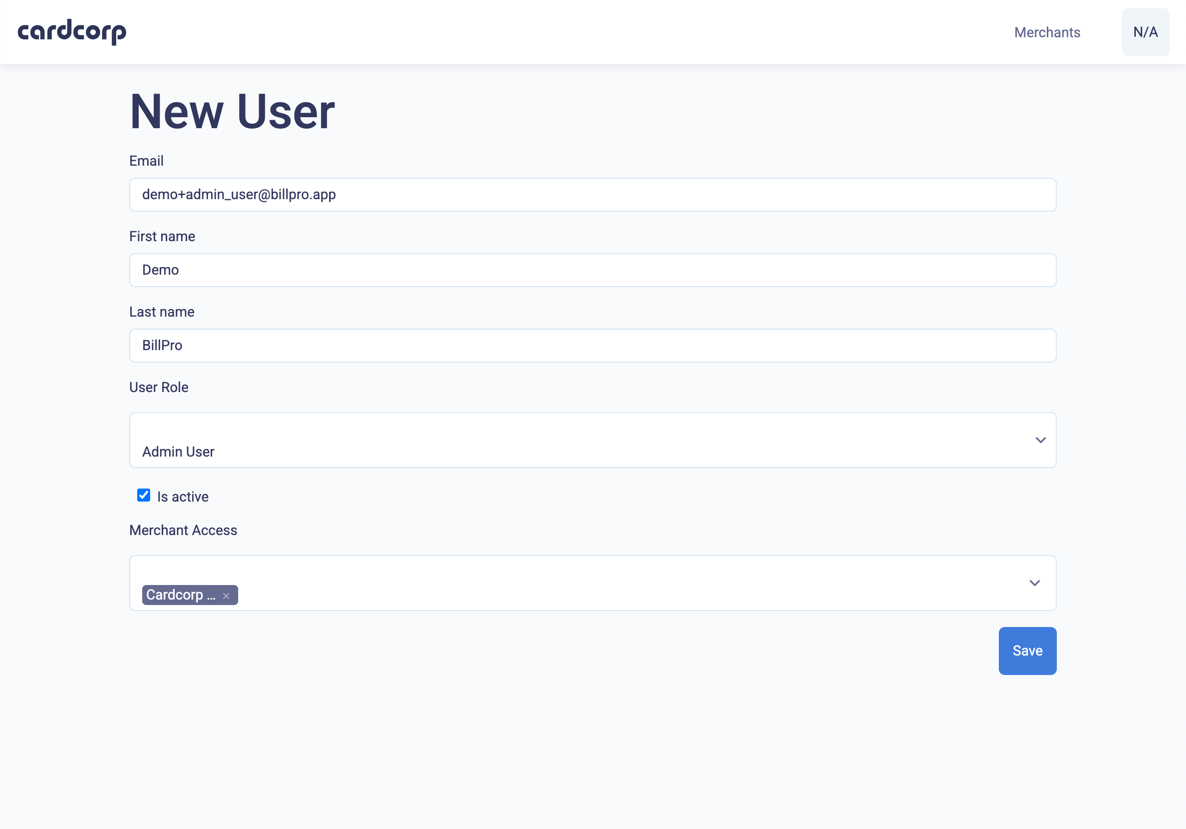
Create a new user
The Users Admin view has a list of the users that the Admin User can manage.
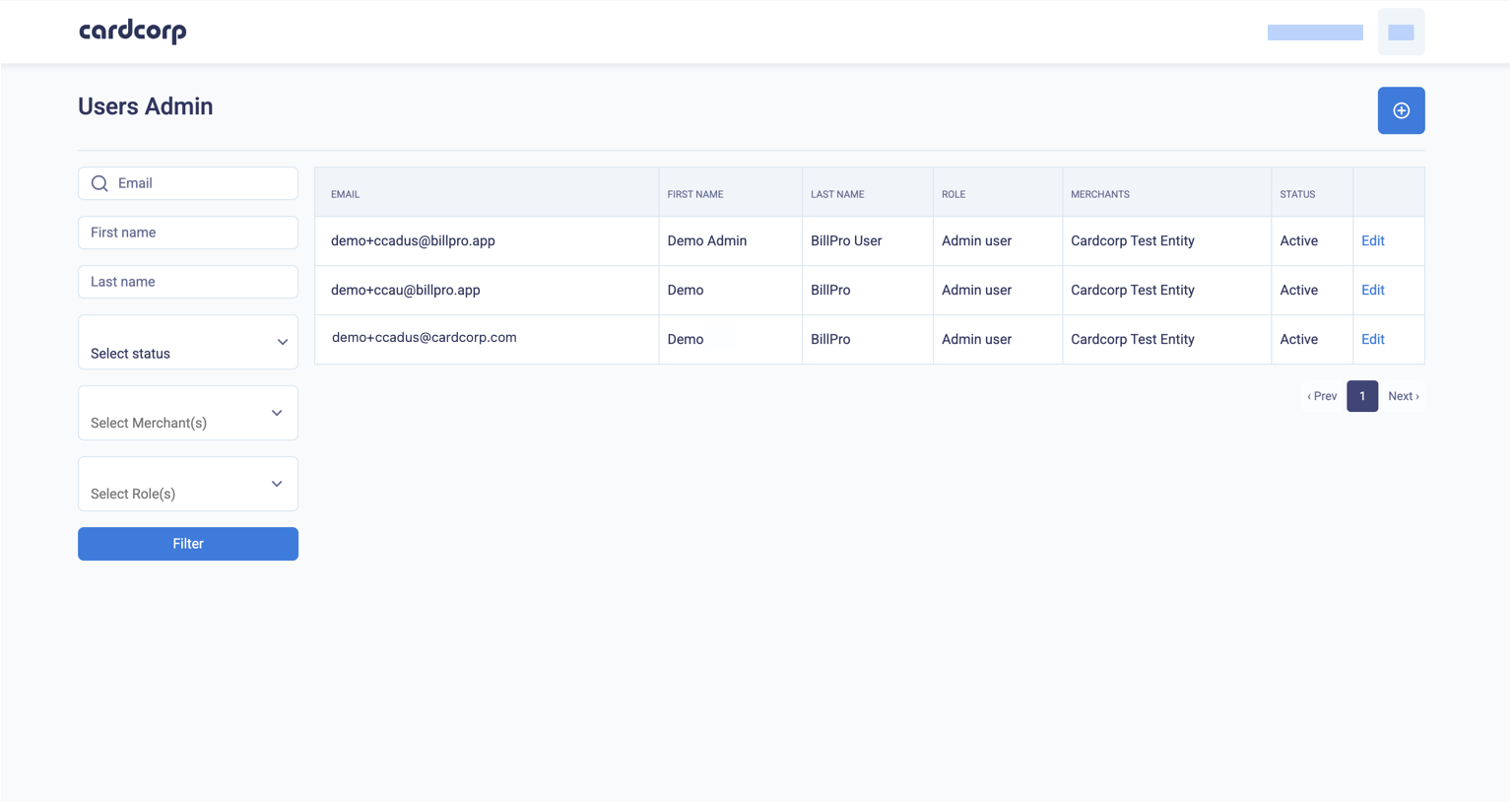
To edit a user, click Edit to the right of the username on the User Admin page.
Here are some notes about updating the user.
To change the password, enter it a second time to confirm it. If you don't want to update the password, do not enter anything in the Password field. If the browser auto-completes the Password field, delete this text.
The Lock Account button locks the user account. The user account is automatically locked after 3 unsuccessful password attempts. If an account is locked, the Lock Account button changes to Unlock Account. An Admin User or CardCorp Admin can click this button to unlock the account.
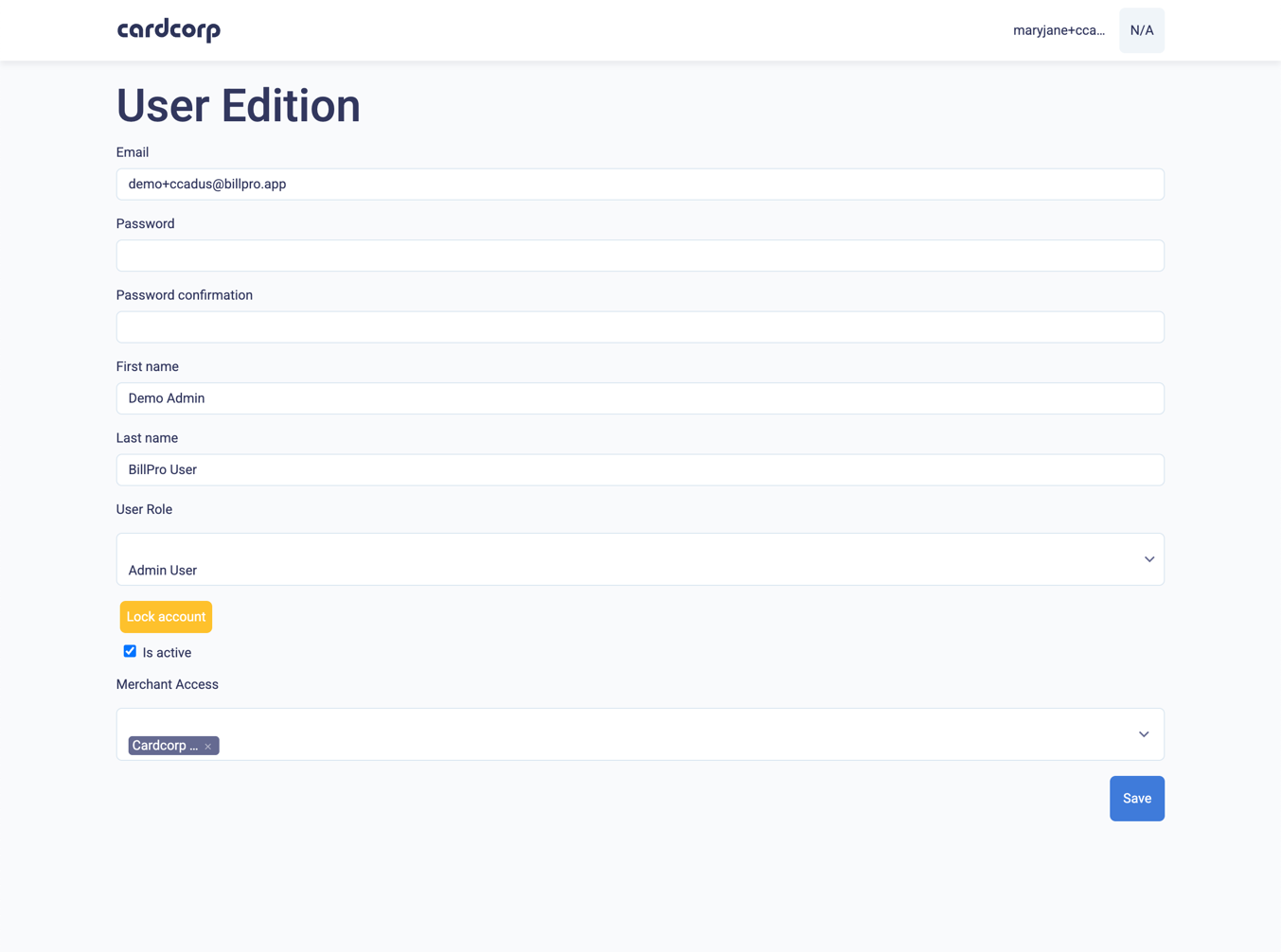
Updated 9 months ago